
In many industrial SMEs, the production schedule lives in an Excel file: one row per production order, one column per day, colors for the machines. That file does real work. Yet it breaks at specific, recognizable moments. Here is what a production schedule in Excel does well, where it reaches its limits, and how to move to production scheduling software starting from your own files.
Key points
- Excel works for a one-off snapshot of the load, a small workshop with stable production orders, or to try out a way of planning.
- It reaches its limits when production orders change every day, when several people edit the schedule, and when you need to account for calendars, absences and actual progress.
- Changing tools does not mean re-entering everything: your production orders can be imported from a CSV file, a format Excel can save to.
What a production schedule in Excel does well
The spreadsheet is the first planning tool of most workshops, and for good reasons:
- It is already there. Everyone has it on their computer, with nothing to buy or install.
- It is flexible. You add a column, a color or a formula in two minutes, without asking anyone.
- It gives a clear snapshot. A few formulas are enough to calculate the load of a workstation over a week.
- It is enough for a small, stable workshop: a few machines, long runs, few rush orders, a single planner.
If your workshop looks like that last case, keeping Excel is a reasonable choice. The difficulties come with rush orders, absences and daily updates.
7 limits of a production schedule in Excel
1. Production orders change every day
An order brought forward, late material, a changed quantity: each change means copying rows, shifting cells and checking formulas. When the ERP exports production orders, the new export has to be merged with the existing file without losing the adjustments made by hand. In practice, the schedule is often one or two days behind reality.
2. Capacity is infinite
A cell accepts anything you type into it. Take an example: three production orders of 6 hours each are placed on Monday on the same milling machine, which runs 8 hours. The spreadsheet shows three colored bars and flags nothing, although the workstation has 10 hours of excess work. To see it, you need a load formula per workstation and per day, and someone who remembers to look at it.
3. Calendars and absences are kept separately
Shift hours, public holidays, closures, leave, maintenance: this information often lives in another tab, another file or the workshop manager’s head. If a setter is absent on Thursday, nothing in the schedule automatically pushes back the operations that need them.
4. Several users, several versions
The planner works on “Schedule_W47_v3.xlsx”, the workshop manager on a printed copy, the sales rep on a version sent by email on Monday. When two people edit the schedule at the same time, one often overwrites the other’s work, or someone has to merge by hand.
5. No link with actual progress
The file says what was planned, not what happened. To know whether an operation is finished, in progress or blocked, you have to walk onto the shop floor or call. A late operation does not shift the following ones: the delay is discovered when the next workshop is waiting for parts.
6. No record of who changed what
A delivery date moved by two weeks. Who decided it, when, and why? In a shared spreadsheet, the answer depends on people’s memory. That is awkward internally, and even more so with a customer asking why their date changed.
7. Priorities go through the phone
When sales wants to bring an order forward, they call the planner, who calls the workshop manager. The decision is written down nowhere, and the operator sometimes learns it mid-shift. The Excel schedule no longer reflects the real sequence of work.
What they have in common: the spreadsheet stores cells and colors. It knows nothing about your resources, their capacity or the sequence of operations in a production order. All these rules have to be maintained by hand by the person who keeps the file.
Spreadsheet or scheduling software: the comparison
The table below compares, need by need, what a production schedule in Excel offers and what production scheduling software does.
| Need | Spreadsheet | Scheduling software |
|---|---|---|
| Snapshot of the load at a given time | Yes, with formulas | Yes, recalculated on every change |
| Adding new production orders | Copy-paste and manual merge | Import from the ERP or a file, updating existing orders |
| Respecting workstation capacity | No, any cell accepts anything | Load compared with the capacity of each resource |
| Calendars, shifts, absences | In another tab or another file | Calendar per resource, used to calculate durations |
| Sequence of operations in an order | Checked by eye | Operations chained according to the routing |
| Several users | Multiple versions, risk of overwriting | A single shared schedule, conflicts flagged when saving |
| Actual progress | Manual entry, often late | Operator reports and operation status |
| History of changes | Rarely available | Author, date and reason for due date changes |
| Delay alerts | Conditional formatting to maintain | Alerts calculated on delivery dates and windows |
| Effort to get started | Low, tool already installed | Setup and training to plan for |
7 signs it is time to leave Excel
A single sign does not necessarily justify a change. When three or four add up, the spreadsheet costs more time than it saves.
- The schedule is redone several times a week, or even every day, because of rush orders.
- Only one person knows how to update the file, and their absence blocks planning.
- Several versions of the schedule circulate on the shop floor at the same time.
- Delays are discovered late, when the next workshop is waiting for parts.
- The workshop manager spends part of the day on the phone to find out where production orders stand.
- Nobody can explain why a delivery date changed.
- Updating the file takes longer than the decisions it is supposed to support.
Moving from Excel to scheduling software without starting from scratch
The most common fear is having to re-enter everything. In reality, your current files contain most of what you need to start: the list of production orders, their operations, the requested dates and the workstations involved.
A good starting point is to organize your file with one row per operation, repeating the order information on each row. The useful columns are:
| Column | Example |
|---|---|
| Unique key of the production order | PO-24074 |
| Unique key of the operation | PO-24074-020 |
| Position of the operation in the order | 2 |
| Operation type | Bar turning |
| Planned workshop | Bar turning |
| Capable resource types | Multi-spindle lathe |
| Gross duration of the operation | 14 h |
| Expected quantity and unit | 2,400 parts |
| Requested end date | Customer delivery date |
| Priority and customer | High, customer A |
The values are examples. The unique key is the most important column: it lets the next import recognize a production order that already exists and update it instead of duplicating it.
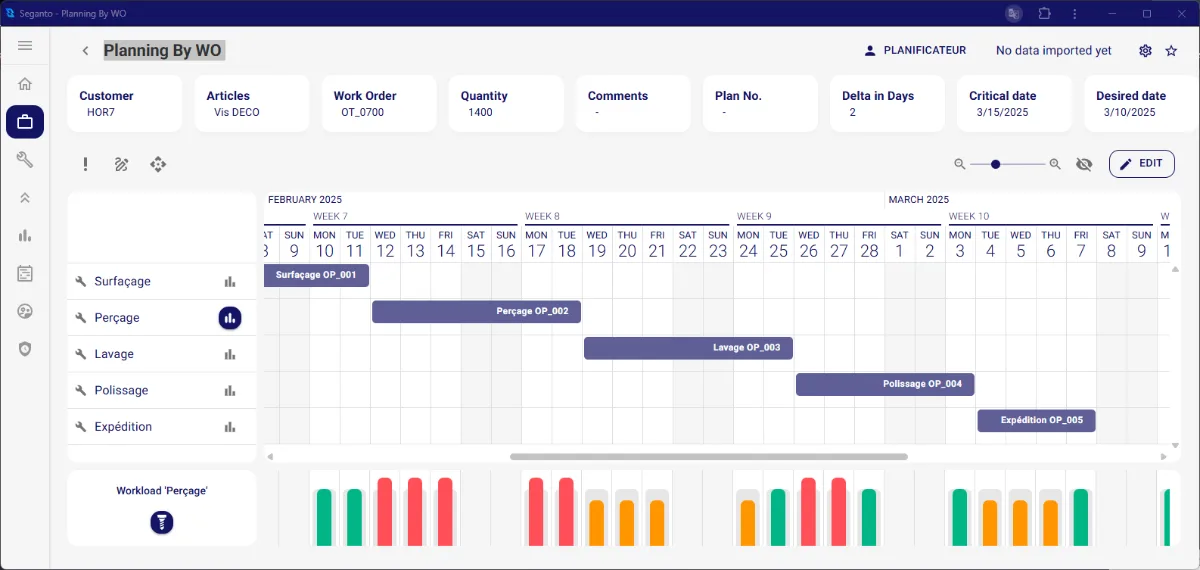
How Seganto takes over from your Excel schedule
Seganto is production scheduling software designed for industrial SMEs. It can start from your files, with or without an ERP.
- CSV file import. The file described above, saved as CSV from Excel, loads into the manual importer. Column names are configurable, a sample file can be downloaded, and a preview lets you check the data before importing. Thanks to import keys, a production order that already exists is compared and updated if needed, and an operation missing from the next file is marked as deleted.
- Load against capacity. The load of each workshop and each resource is compared with its capacity. An overload shows in red while you move operations.
- Calendars and unavailability. Each resource has its own calendar, with recurring availability and one-off absences. Site-wide unavailability is entered once.
- Several users. Nothing is saved until you save. If another user changed the same schedule in the meantime, Seganto lets you choose between the two versions, change by change.
- Traceable due dates. Every change to a requested end date is kept: who changed it, from which date to which date, and with what comment.
- Written priorities. Requests to change a due date or a priority go through a prioritization table: the person who promises dates creates the request, and the planner accepts or rejects it.
- Actual progress. In Execution mode, operators report good parts, scrap and interruptions. The workshop manager sees operations that are finished, in progress and late (see our production tracking page).
On the shop floor, the workshop manager places operations by drag and drop on a calendar per resource, or lets Seganto find the first free resources. For workstations with very short tasks, a Kanban gives each operator their priority list.
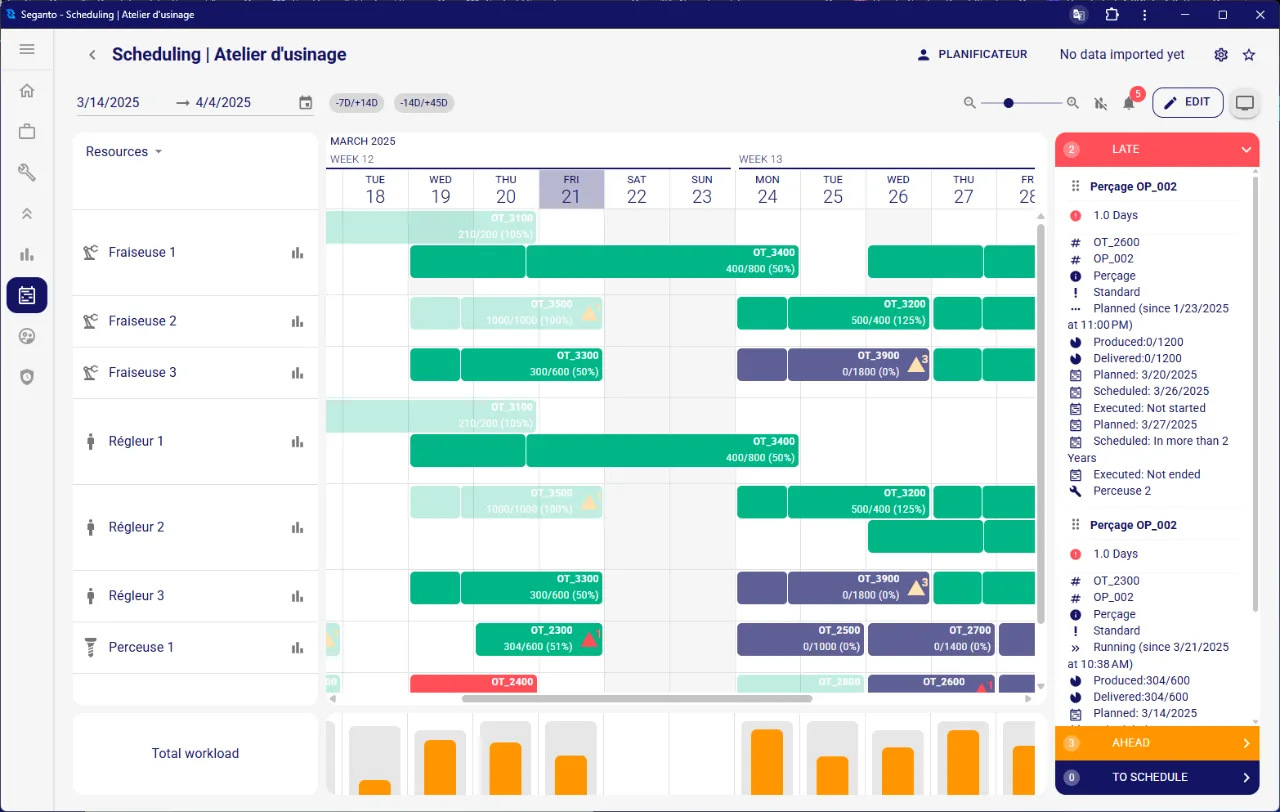
Getting started takes 15 days, beginning with one workshop or one line. The Deploy Seganto page details the method.
Frequently asked questions about production planning in Excel
Is there a free Excel production schedule template?
Yes, many templates are available, usually one row per production order and one column per day. They are fine to get started. Add at least a duration column per operation and a capacity row per workstation, otherwise the template does not show overloads.
Can you do production scheduling in Excel?
For a small workshop, yes: you can assign each operation to a machine and a day. But the spreadsheet checks neither capacity, nor absences, nor the sequence of operations. These checks stay manual, and they become unmanageable when production orders change every day.
When should Excel be replaced by scheduling software?
When several signs add up: a schedule redone several times a week, a single person able to maintain it, several versions in circulation, delays discovered too late and priorities handled by phone.
Do you need an ERP to leave Excel?
No. Seganto can import production orders from a CSV file, or create them directly in the software from a routing. An ERP can be connected later.
Can you keep Excel for some analyses?
Yes. Seganto tables, such as the alert center, can be exported to CSV: you can keep doing your analyses in the spreadsheet from up-to-date data.
See your Excel schedule in production scheduling software
Show us your current file: we will show you Seganto on a case close to yours, with load per workstation, calendars and actual progress.
Book a demoDiscover the scheduling software